Posts

Showing posts with the label VirtualBox

VirtualBox 3.0 freezes bug has been fixed

If you had been following my blog, I posted an issue earlier with VirtualBox 3.0 that under network load it freezes. That bug has been fixed in release 3.0.2. Please refer to the release notes of 3.0.2 for an update. I verified the fix by reinstalling the 3.0.2 version.

Troubleshooting network issues in VirtualBox

VirtualBox comes with built-in facility to trace the network packets. To enable tracing, you must first shutdown your VM. Then find out the VM's name or uuid. Please refer to my earlier post to find how to find uuid. Once you have the uuid of the VM, give the following command: vboxmanage modifyvm a27473c0-d690-4c95-a48a-1c49d69a20e6 --nictrace1 on --nictracefile1 c:\temp\nictrace1.pcap Replace my uuid with yours. I am enabling tracing on the NIC1. You will have to change the parameters appropriately if you would like to trace some other NIC. To make sure that your VM's tracing is enabled on the specified interface, give the following command: vboxmanage showvminfo a27473c0-d690-4c95-a48a-1c49d69a20e6 VirtualBox Command Line Management Interface Version 2.2.4 (C) 2005-2009 Sun Microsystems, Inc. All rights reserved. Name: Ubuntu8.10 Guest OS: Ubuntu UUID: a27473c0-d690-4c95-a48a-1c49d69a20e6 Config file: C:\Documents and Settings\xxxx\.VirtualB...

VirtualBox 3.0 freezes under network activity

*** Update on 07/11/2009 *** The issue below has been marked as fixed. Refer to the release notes of 3.0.2 for a note on what has been fixed. I think now you can happily move back to VirtualBox 3.0 :-) After installing the VirtualBox 3.0, I ran my Ubuntu under that. When I ran update manager, my VM kept freezing. I realized that not only with update manager, even with Firefox trying to download a huge file, the VirtualBox freezes. Looks like this a known issue and there is a bug artifact for this one. As of now, there is no fix available and there is no ETA as well when the fix will be available. So I have happily reverted back to VirtualBox 2.2.4 version. I don't see that issue anymore.
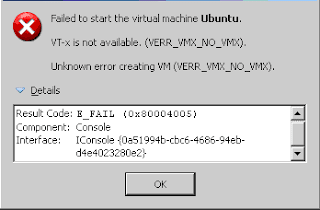
VT-x is not available error in VirtualBox 3.0

Image
After installing the VirtualBox 3.0, when I started my Ubuntu VM, I got the error shown in the image on the right side. The reason for this error is explained in this discussion thread . To recover from this error, follow these steps below: Click on the OK button and come to the VirtualBox manager. Click on the VM that threw this error and click on the System. Click on the Processor tab and reduce the number of CPUs to 1. Click on OK and save your changes. Now start your VM by selecting it and clicking on Start button or just by double clicking on the VM. Though the VirtualBox can support multiprocessor guest operating systems, to enable it you must have VT-x support from the underlying processor.

VirtualBox 3.0 relased

VirtualBox 3.0 has been relased. You can download that from the product web site . I have upgraded and yet to try out my Ubuntu image in that.

Mounting folder shares in xVM

In xVM, you can access folder shares from the host system in your guest Linux system. The prerequisite is to install all the guest additions. The following is the process that I followed to install guest additions and mount the shares in my Ubuntu desktop (Linux ubuntu-desktop 2.6.24-24-generic). Installing guest additions is very easy. Once you start your guest OS, you click on the "Devices -> Install Guest Additions" in the xVM. Then it will mount a CD ROM for you. Once the CD ROM is mounted, just let it auto run or you can run the appropriate shell script from the mounted CDROM. Usually it is mounted under /media/cdrom. So doing an ls under that directory should tell you which shell script you need to run. To create a share, go to "Devices -> Shared Folders". Click on the add share icon (the one that has "+" in it). Select the folder you would like to share with the guest and then give it a name. It is preferable to give a short name for the share...

xVM's vboxmanage.exe command

You can view and edit the configuration of your guest OSs using the vboxmanage command. To view the list of guest OSs you have, give the following command: C:\Program Files\Sun\xVM VirtualBox>VBoxManage.exe list vms VirtualBox Command Line Management Interface Version 2.2.2 (C) 2005-2009 Sun Microsystems, Inc. All rights reserved. "MySolaris" {dc6dc85f-5583-4a1b-bf3e-969941a2cd91} "Ubuntu" {eb973bbf-d86e-4579-85eb-6ea2cd12bf95} "Debian" {3e784597-89d8-4f17-90cb-63e866c651a3} "openSUSE" {6862884e-60e1-4c65-8aab-b57ec38a3922} "Debian-Lenny" {4b561432-abac-4a27-a501-b42af956b96b} To view the specific guest, you can use the UUID of the guest. For e.g. C:\Program Files\Sun\xVM VirtualBox>VBoxManage.exe showvminfo eb973bbf-d86e-4579-85eb-6ea2cd12bf95 VirtualBox Command Line Management Interface Version 2.2.2 (C) 2005-2009 Sun Microsystems, Inc. All rights reserved. Name: Ubuntu Guest OS: Ubuntu UUID: eb973bb...